How to configure integration with Fiks Arkiv for an app.
Nuget version v8.9.0 or
higher is required for an app to support Fiks Arkiv.
In addition to the documentation below, we have created a
sample application showing the complete Fiks Arkiv setup in an app.
Prerequisites
Before setting up the Fiks Arkiv integration in your app you will need to have the following set up:
Fiks Protokoll enabled in Fiks forvaltning portal for your organization
Samarbeidsportalen access to configure Maskinporten clients (national ID provider)
An archive system that integrates with Fiks Arkiv (e.g., Public 360)
Integration architecture and flow
Principal of message transmission through Fiks Arkiv. Fagsystem in the sketch would in this case be an Altinn App.Source of image: KS Digital
Flow chart for Fiks Arkiv integration for an Altinn app
Configuration for sending messages from Altinn App
Step 1: Create a Maskinporten client
Set up a Maskinporten client with scopes: ks:fiks, altinn:serviceowner/instances.read and
altinn:serviceowner/instances.write
Generate a JWK key pair for Maskinporten authentication and upload the public key to the newly generated Maskinporten client
Keep the following configuration values for the Altinn App setup
Client id for the generated Maskinporten client
Public and private key of the Maskinporten JWK key pair (base64 encoded)
This Maskinporten client will be used to authenticate requests from the Altinn App both towards Altinn Platform
and Fiks.
A detailed guide on how to set up a Maskinporten client in Samarbeidsportalen is available below.
Start by logging into your account with your chosen method.
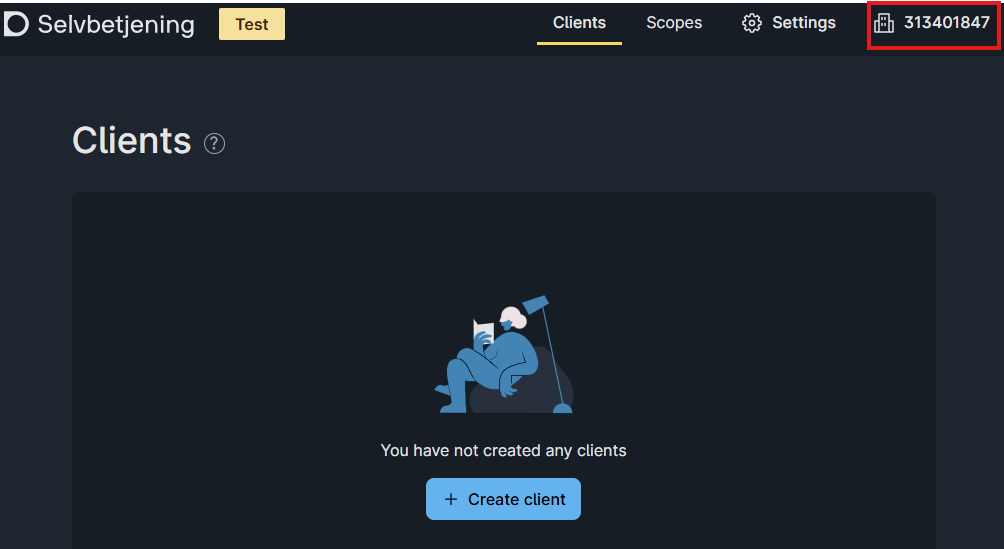
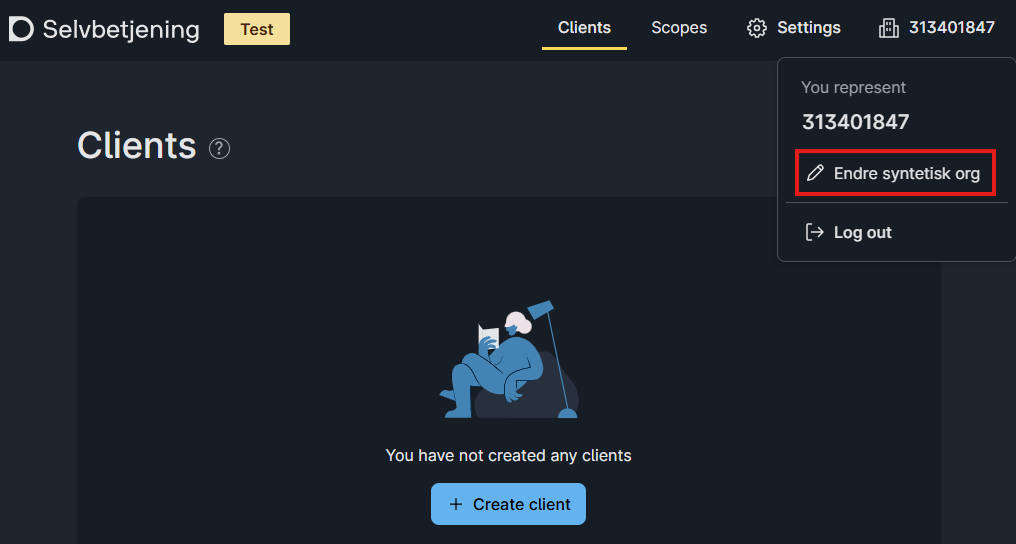
When logged into your account, the organisation you represent is shown in the top menu to the right.The organisation you represent is shown in the top menu.If you logged in to represent a synthetic organisation, you will also be able to change the synthetic organisation you represent in the drop down menu on that item.You can change the synthetic organisation you represent in the drop down menu.
Select the Create client button to start creating a new client for the organisation you represent.
On the Add client page select Maskinporten.
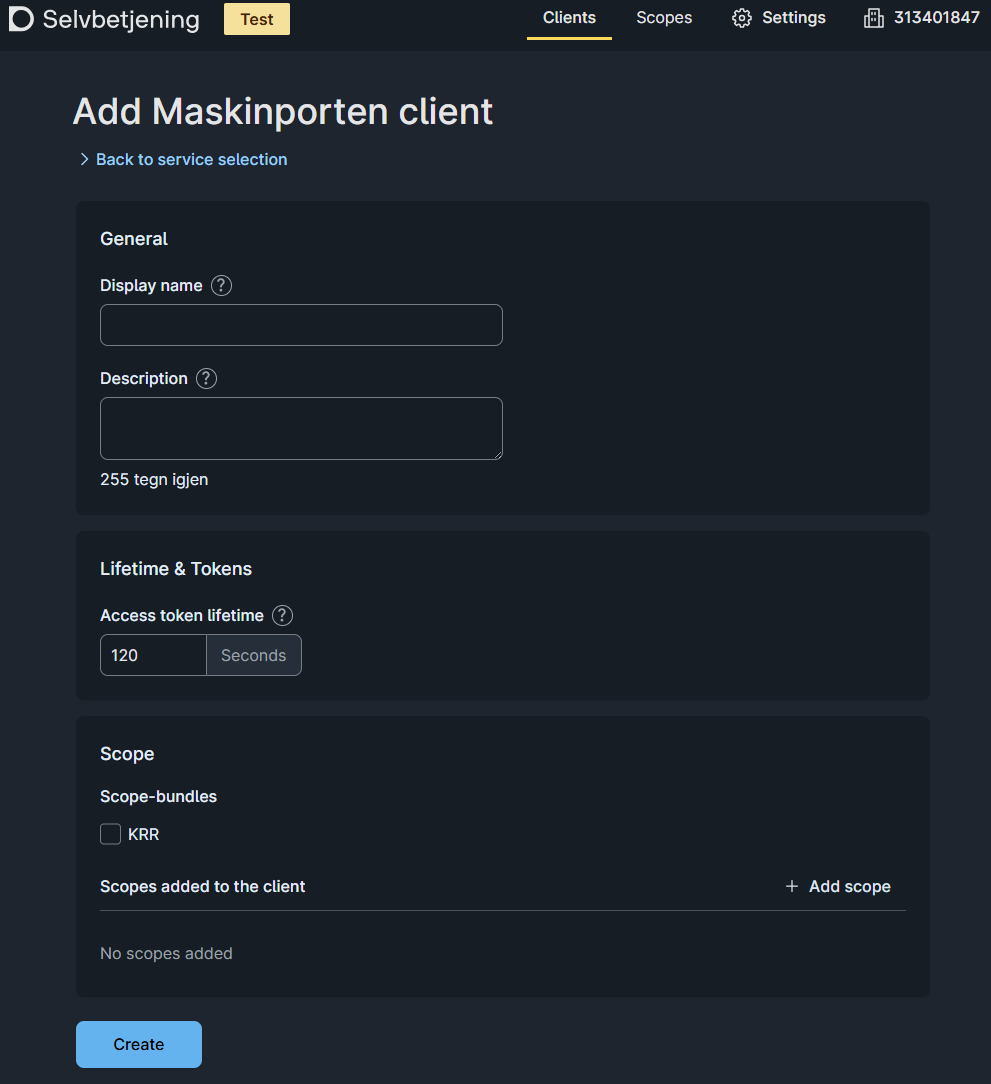
On the Add Maskinporten client page fill in the display name, description and add your required scopes (these values can also be changed later). Then click the Create button.The 'Add Maskinporten client' page.
You have now created a Maskinporten client for your organisation.
To use this client you need to add at least one authentication key. The client supports JWK and PEM keys.
Start by either locating an existing key or creating a new one. You can use the Altinn JWKS tool or other key generator of your choice for this.
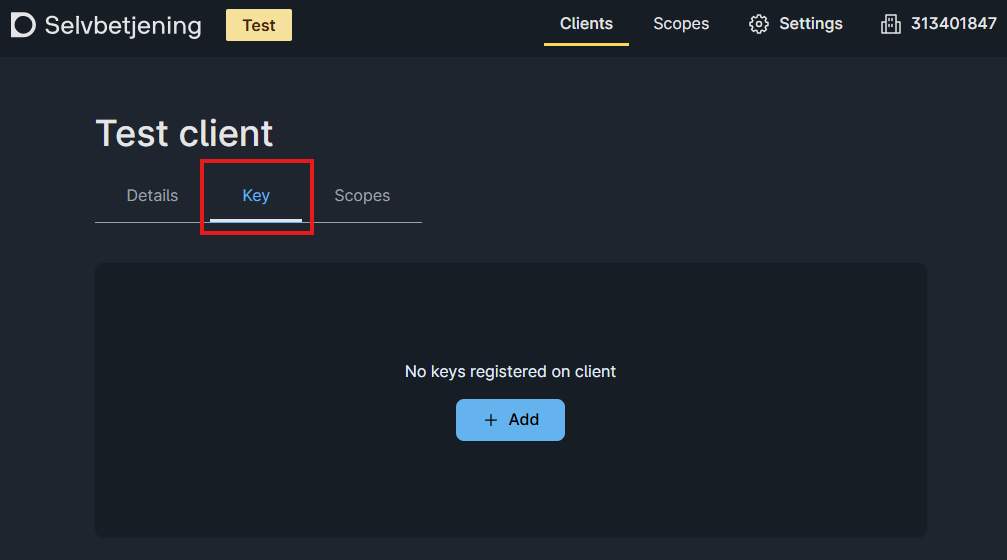
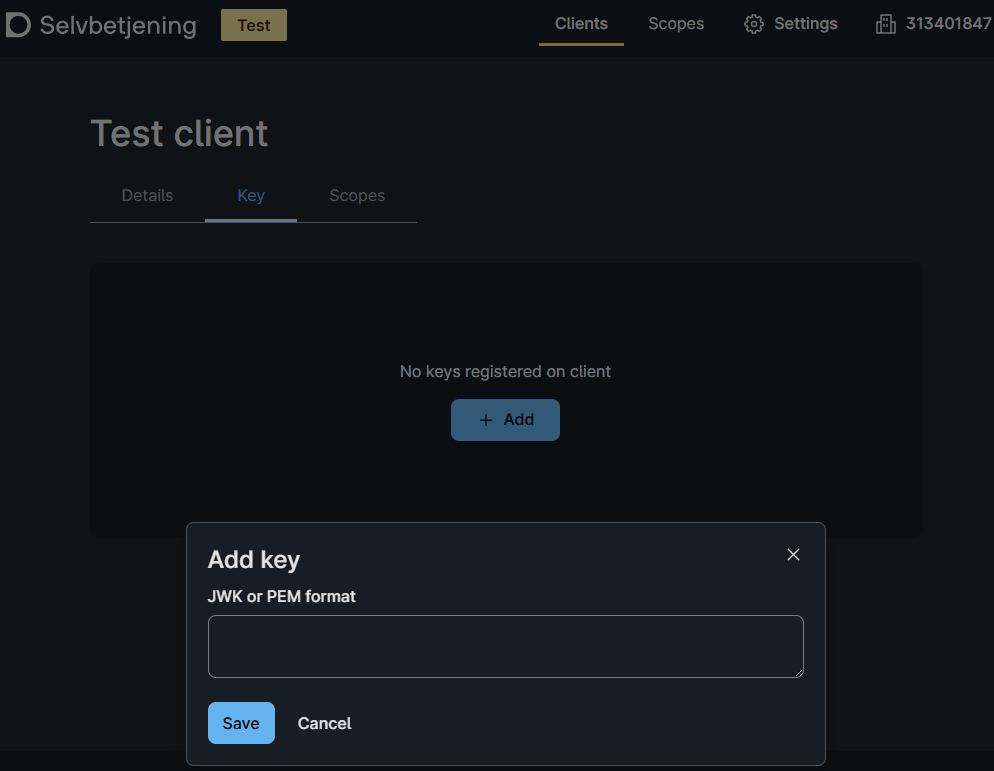
Next, navigate to the key section on your client page and select Add.Keys can be added in the key section.In the JWK or PEM format field paste your public key and click Save. The key is now added to the client.
Store your private key from your JWK or PEM in a secure location, as it is used to authorize the use of this client.
If you use Azure Key Vault to store your private keys, they need to be base64-encoded before uploading.The JWK or PEM public key is pasted in this field
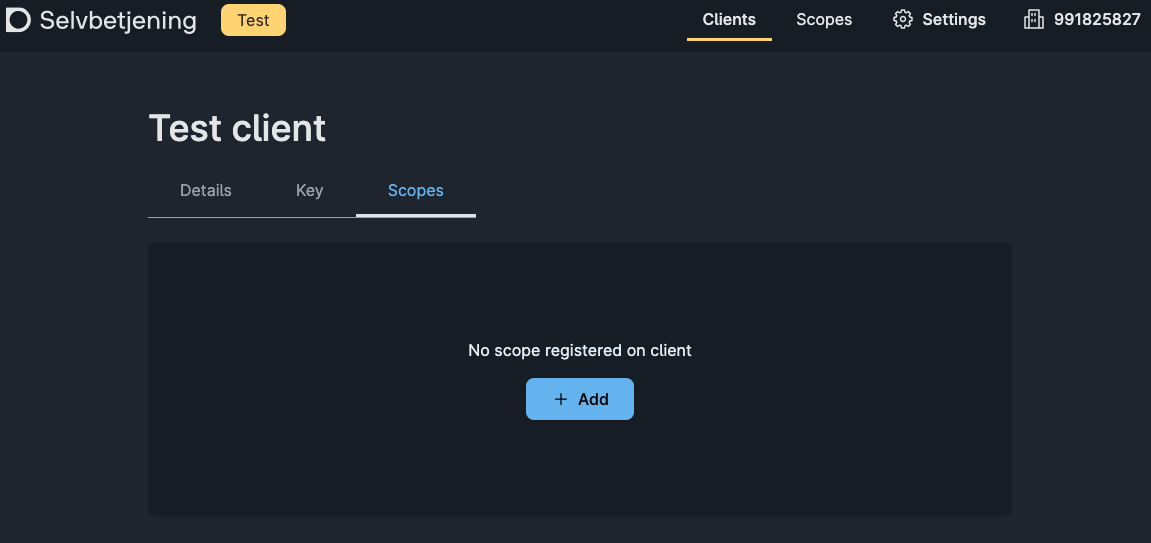
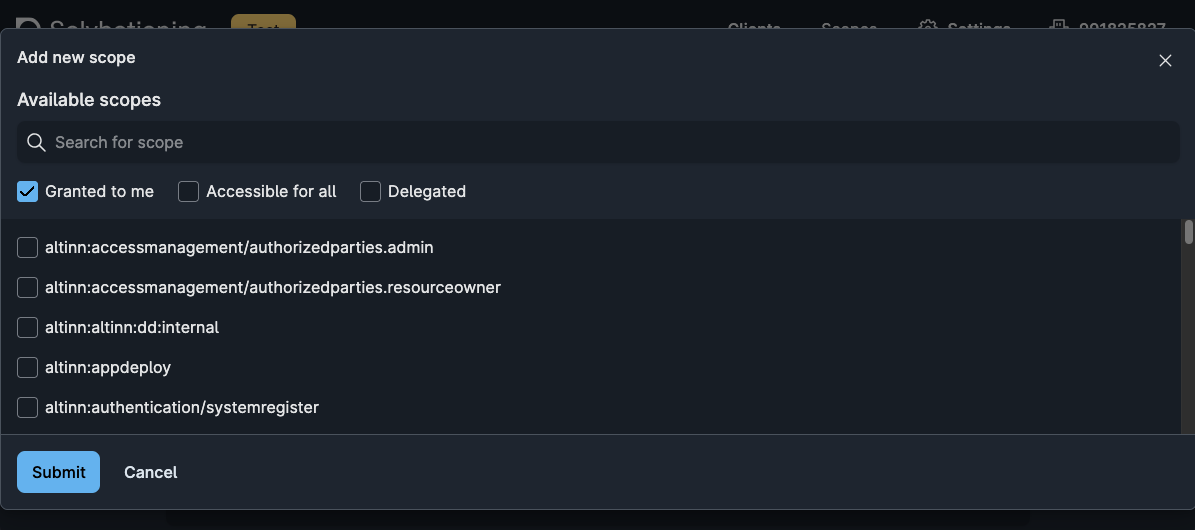
If you didn’t do so in step 5, you need to add the desired scopes to your client before it can be used.From the Scopes tab on your client definition, click the Add button.Scopes available to your organisation will be shown in the list. Select the required ones and click Submit.
Step 2: Create a Fiks Arkiv account
To ensure that receipts for archive messages are sent to the correct application, multiple apps cannot share one account.
It is therefore recommended to set up one account per unique Altinn app.
Generate a x509 certificate for Fiks Arkiv encryption.
Format requirements:
Public part: .PEM file, to be uploaded in Fiks Forvaltning
Private part: .PEM formatted string, base64 encoded to be uploaded as a secret for the Altinn App.
Use your preferred tool to generate the certificate. A guide is available at the end of this section.
This generates a file privatebase64.txt containing the private key as a Base64-encoded string.
Linux / macOS
Use the base64 command:
base64 private.pem > privatebase64.txt
This creates privatebase64.txt with the Base64-encoded private key.
Notes
Keep your private key secure. Do not share private.pem or its Base64 representation publicly.
The generated certificate (public.pem) can be distributed as needed.
Troubleshooting
OpenSSL not found: Ensure it’s installed and added to your system PATH.
Permission issues: Run the commands with appropriate privileges or in a directory where you have write access.
Invalid Base64 output: Verify the original file exists and is readable before encoding.
Step 3: Configure and prepare the Altinn App
The Altinn Fiks package automatically handles a lot of the integration for you. The simplest setup for a Fiks Integration
involves setting up configuration values for connection to Maskinporten and Fiks, as well as specifying which
data should be sent to Fiks and who the recipient is.
That being said, all interfaces can be overridden with custom logic should you wish to have more control yourself.
The standard way is what is described here, but interfaces will be mentioned for those that wish for more control.
Add a reference to the NuGet package
Altinn.App.Clients.Fiks in your project file.
The package version should match the version of the Altinn.App.Core and Altinn.App.Api packages.
Note: You are free to select section names for the configuration values,
but these must match the section names used in appsettings.json and/or the applications secret management
platform (e.g. Azure Key Vault).
Set up configuration values in appsettings.json or Azure Key Vault.
All sensitive values should be registered in Azure Key Vault, and not checked
in to appsettings.json.
The client id for the Maskinporten client generated in step 1 and the base64-encoded public and private key
should be added as ClientId and JwkBase64 in the MaskinportenSettings section.
Setting Name
Description
Authority
The Maskinporten authority/audience to use for authentication and authorization.
ClientId
The client ID which has been registered with Maskinporten. Typically a uuid4 string.
JwkBase64
The private key used to authenticate with Maskinporten, in Base64 encoded JWK format.
"MaskinportenSettings": {
"Authority": "https://[test.]maskinporten.no/",
"ClientId": "retrieved from secrets",
"JwkBase64": "retrieved from secrets"}
Key Vault Secrets
MaskinportenSettings--ClientId
MaskinportenSettings--JwkBase64
For the application to be able to read the secrets from Azure Key Vault, it needs to be configured to do so.
See the secrets section to achieve this.
Note: The secrets are read by the application on launch so if you make changes after the application is deployed,
you will need to redeploy the application for them to come into effect.
Further, we break down each sub-section of FiksArkivSettings, shows how to bind values (static vs. dynamic),
and provides a complete appsettings.json example.
As the code is subject to change, the settings are documented after best effort.
If you want an exact depiction of the available settings, please reference the source code.
Sections & Settings
Receipt (FiksArkivSettings.Receipt)
Settings related to the records created after a successful shipment.
Note: The data types defined here must have corresponding entries in the datatype definition in applicationmetadata.
Setting Name
Purpose
Format
ConfirmationRecord
Defines the data type and name for the arkivkvittering.
{ "DataType": "string", "Filename": "string" }
ArchiveRecord
Defines the data type and name for the arkivmelding.
Settings related to who will receive the Fiks Arkiv message.
Setting Name
Purpose
Type
FiksAccount
The recipient account GUID to ship messages to.
GUID (required)
Identifier
Recipient identifier (e.g., municipality number).
string (required)
Name
Recipient name.
string (required)
OrganizationNumber
Optional recipient organization number.
string (optional)
Recipient settings support both static and dynamic configuration formats - see
How Values Are Provided for syntax and use DataModelBinding when fields differ
per instance.
Contextual information used by the archive system.
Setting Name
Purpose
Default Behavior
SystemId
System ID used in the generated arkivmelding.xml.
Defaults to Altinn Studio if not provided.
RuleId
Optional rule ID for processing the incoming message in systems that support rule IDs.
Omitted if not provided.
CaseFileId
ID for the generated case file (saksmappe element).
Defaults to the instance identifier if not provided.
CaseFileTitle
Title for the generated saksmappe tittel element.
Defaults to the application title if not provided.
JournalEntryTitle
Title for the generated journalpost tittel element.
Defaults to the application title if not provided.
Metadata support both static and dynamic configuration formats - see
How Values Are Provided for syntax and use DataModelBinding when fields differ
per instance.
Definition of the documents to include in the archive message (arkivmelding) that is sent to Fiks Arkiv.
Setting Name
Purpose
PrimaryDocument
The main document (e.g., form data or PDF) sent as Hoveddokument.
Attachments
Optional additional documents sent as Vedlegg (array of attachments).
Each document entry typically uses DataType to indicate the source and/or format. For example, "ref-data-as-pdf" for a PDF generated from reference data.
Use Value when you know the text upfront; use DataModelBinding when values should come from your runtime data (e.g., fields collected in a form or helper model).
Troubleshooting
Missing titles: If journal or case file titles are empty, check that your DataModelBinding points to existing fields, or provide a Value.
Incorrect recipient: Verify that FiksAccount contains a valid GUID and matches the intended recipient.
Attachment resolution: Ensure each attachment DataType is defined in applicationmetadata.
Define desired process flow for the application
The recommended process flow for an application using Fiks Arkiv is depicted below.
The feedback step is necessary to allow for a response from the asynchronous process of sending the archive message
and receiving a response before confirming to the user that the sending was successful.
Define the policy for the application
Ensure that each task in the process flow has authorization rules linked to them specifying which entities are allowed
to complete which actions given a specific state.
Overriding standard behavior
If the standard archive message and functionality does not cover what you need in your archive message,
it is possible to override the implementation of functionality for archive message generation and
processing the response from the receiving Fiks account.
Override archive message generation
The interface to implement is IFiksArkivPayloadGenerator.
If your implemented class is called OverridePayloadGenerator, the service registration will be as follows:
Configuration for receiving messages in archive system
As Digdir does not offer the archive system or Fiks Arkiv, we do not have extensive documentation here, but recommend that
the application developer reference KS Digital’s documentation along side the documentation of
the archive system provider.
However, as more application owners make use of the integration we have seen a few common pit falls.
These along with solutions are listed below, to be used at your convenience.
Create a Fiks Arkiv account
For your organization, set up a new system under Fiks Protokoll
Create an account linked to this system
The account should be configured with the following properties
Property
Value
Protokolltype
no.ks.fiks.arkiv
Versjon
v1
Protokollparter
arkiv.full
Pick a name for the account that reflects the Altinn app, as it is recommended that a new account is set up for each Altinn App one wants to integrate with the archive system.
Please reference archive system documentation on requirements for the encryption key pair.
Under the account, navigate to the Søk etter systemer tab and look up the system created to send messages.
Grant this system permission to send messages to the recipient account by clicking Gi tilgang.
Known issues in configuration of Public 360
The encryption key is not documented
The maskinporten token uploaded in P360 is used as the private part of the encryption key
the Fiks Arkiv account that receives messages should upload the public part of this certificate
as the encryption key.