

Add Maskinporten scopes to an app
Step-by-step guide for adding Maskinporten scopes to an app in Altinn Studio.
This guide shows how to add Maskinporten scopes to an app in Altinn Studio.
Before you start, sign in with Ansattporten on behalf of the organisation that owns the app. The app must also have a service owner rule in App/config/authorization/policy.xml that grants [org] the read and write rights.
altinn:serviceowner, altinn:serviceowner/instances.read and altinn:serviceowner/instances.write, apps using Altinn App v8.3 or newer can use the Add default scopes button when it is shown. Apps using Altinn App v9 get these scopes automatically if they are missing.The screenshots show the Norwegian Altinn Studio UI. The flow and placement are the same in English.
Steps
Open the app in Altinn Studio. Go to Settings, and open the Maskinporten tab. If the Add default scopes button is shown, you can use it to add the default scopes. Select Add to add other scopes manually.
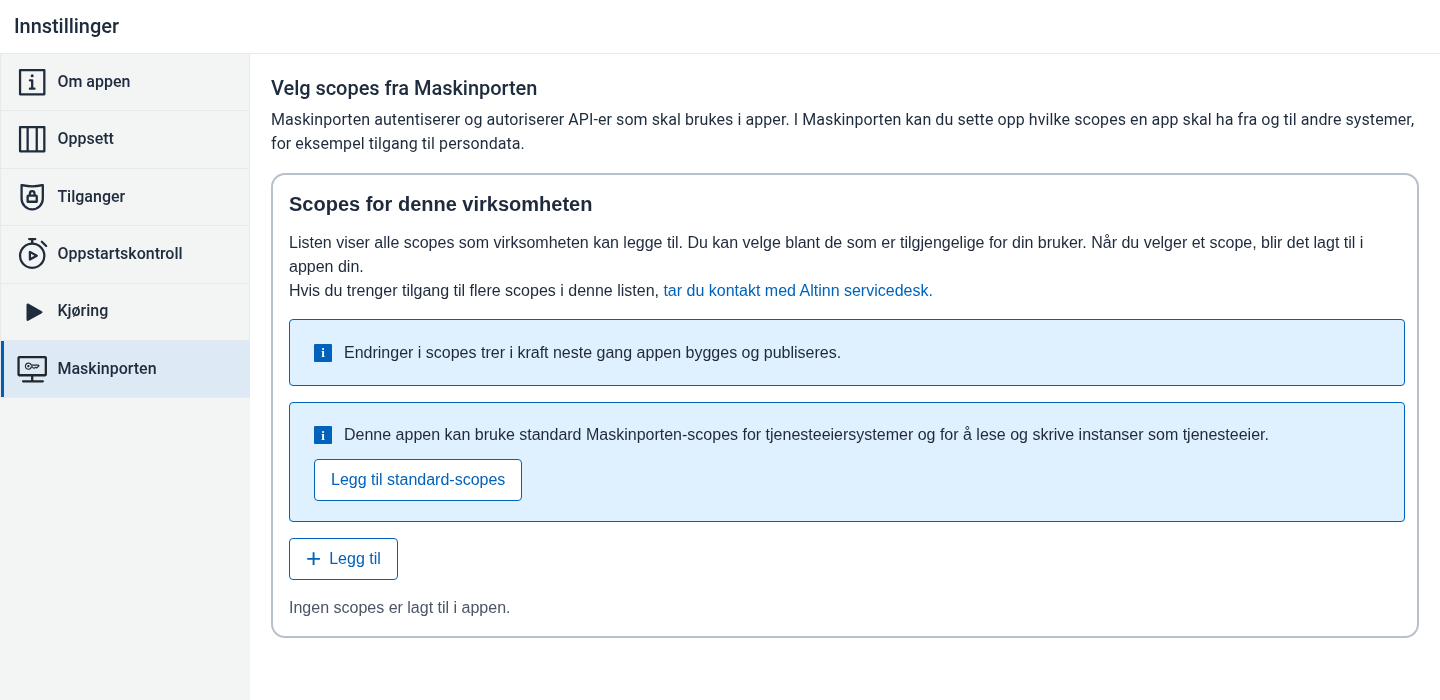
The Maskinporten tab in app settings. In the Add new scope dialog, you can search for scopes that the organisation has access to.
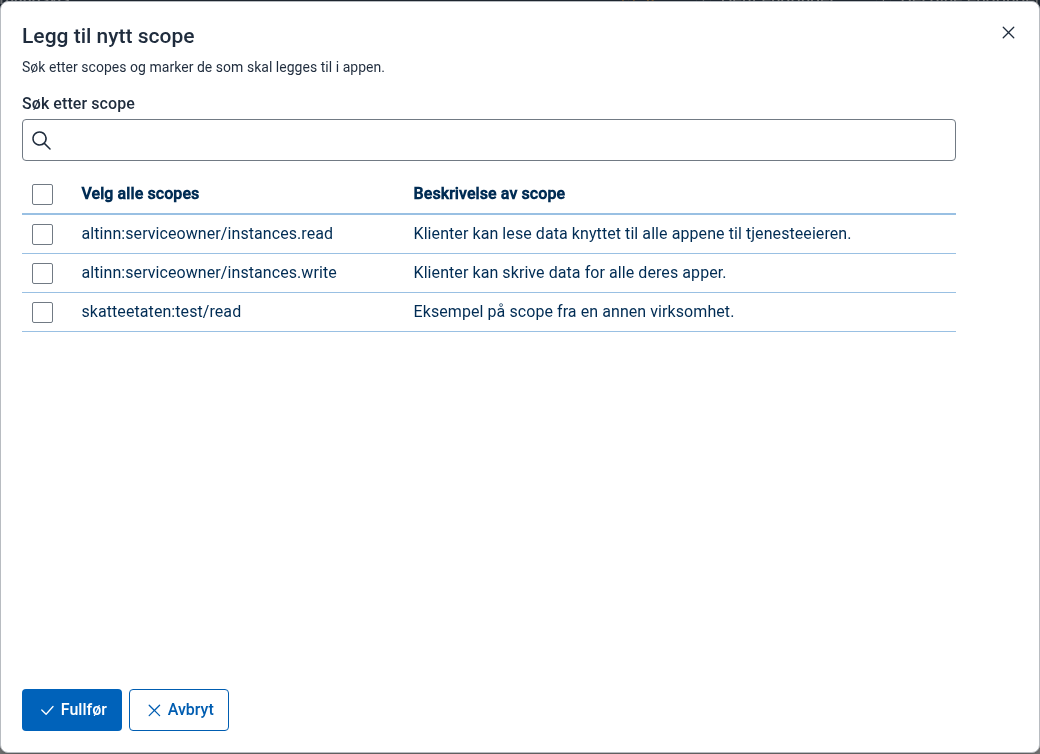
The Add new scope dialog. Search for the scopes the app needs, and select one or more scopes in the list.
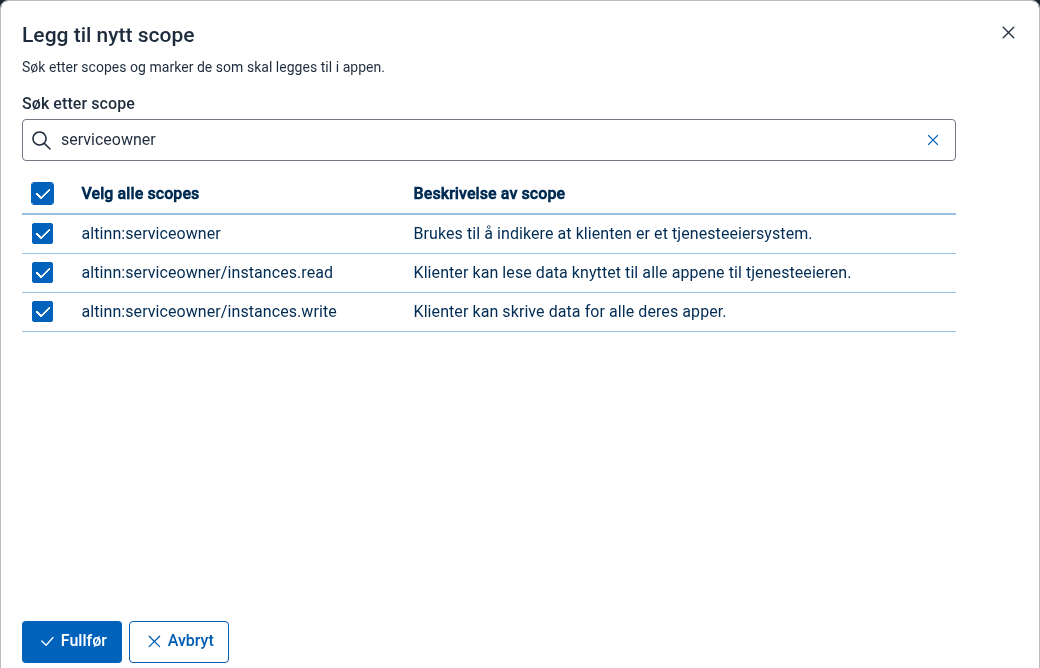
Select scopes in the dialog. Select Complete to save the scopes in the app settings.
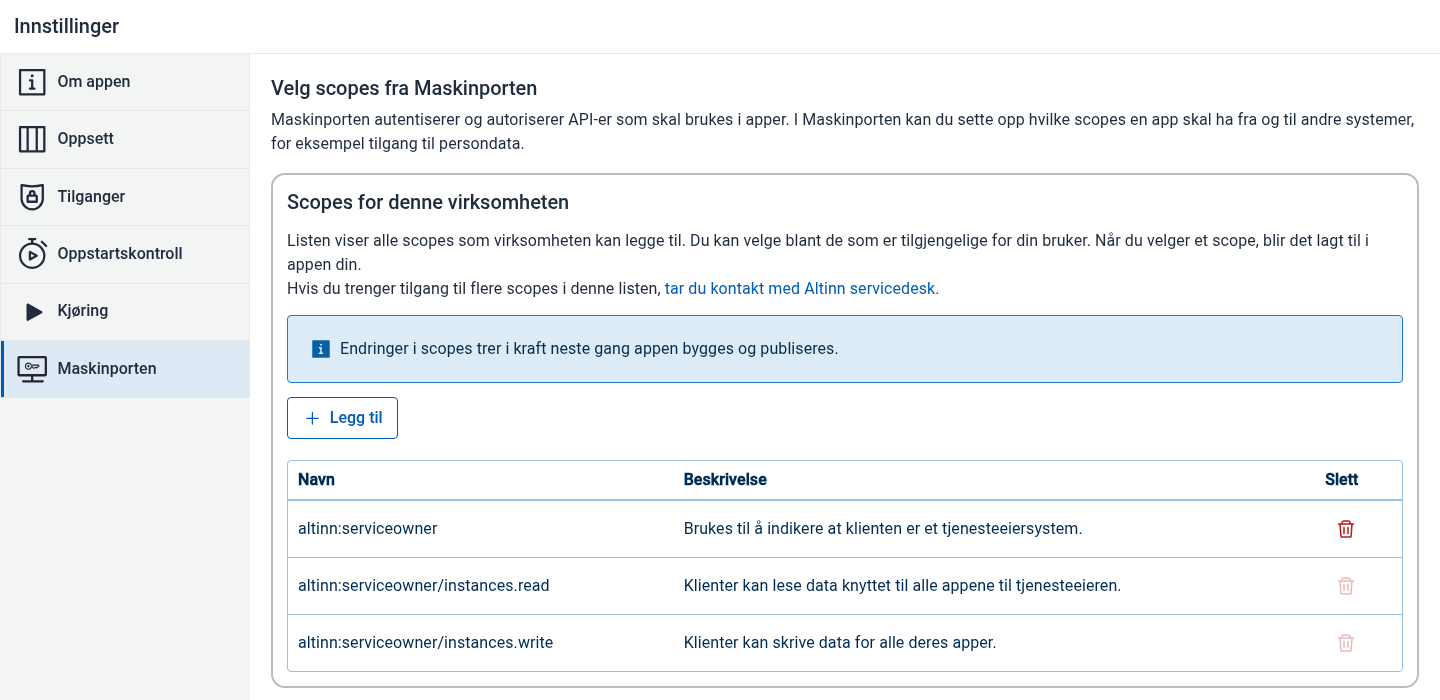
Selected scopes shown in app settings. Build and deploy the app again. Scope changes take effect the next time the app is built and deployed.
If you do not have access
If Studio shows You do not have access on behalf of the organisation, Studio cannot fetch available Maskinporten scopes for the app owner organisation with the Ansattporten access you are already signed in with. Scopes already added to the app are still shown, but you cannot add or remove scopes until the access is in place.
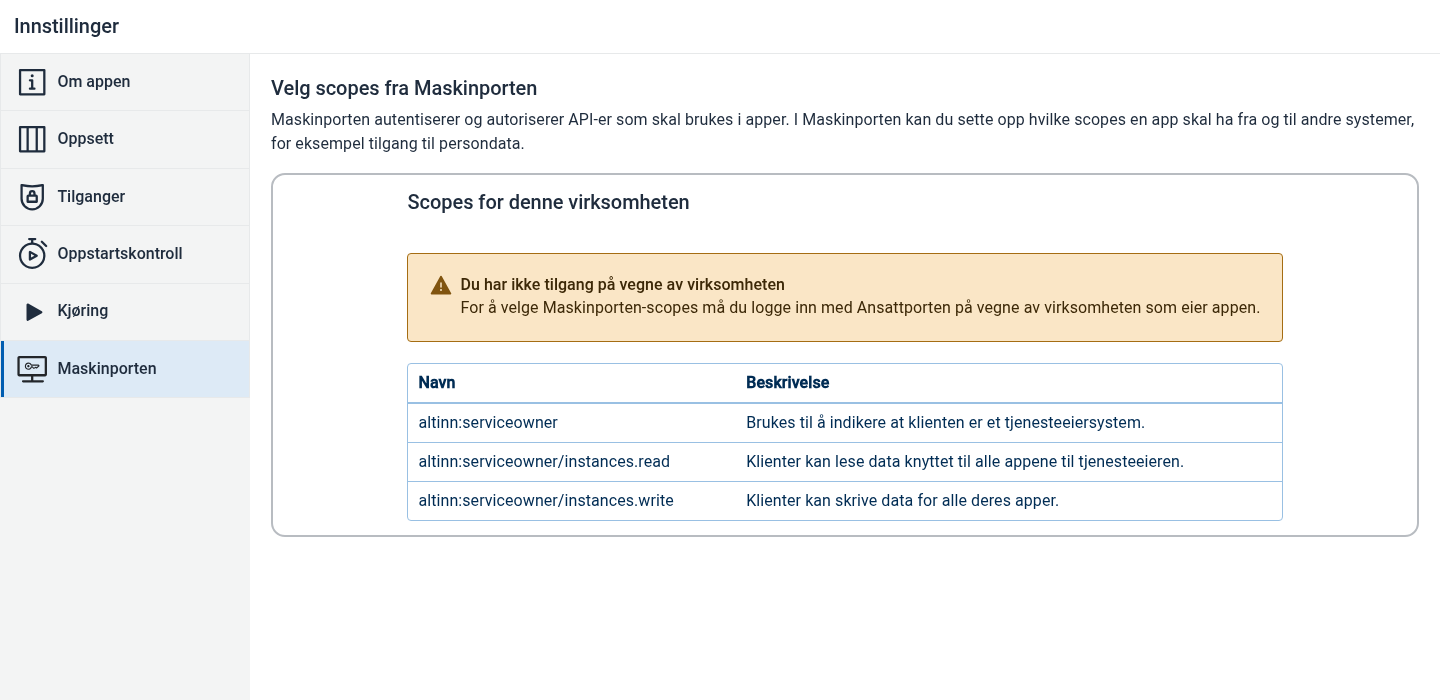
To resolve it:
- Check that the app is owned by the correct organisation in Altinn Studio.
- Ask a director/manager in the organisation, or someone with the Altinn Hovedadministrator role, to give your user access to self-service for clients in ID-porten/Maskinporten in Altinn. If the organisation also administers API scopes itself, the user also needs access to self-service for APIs. See Digdir’s guide for access in test and production environments.
- Alternatively, ask a user who already has this access to add the scopes to the app.
- Try again in Altinn Studio after the access has been granted.
- Contact Altinn servicedesk if the access should be correct but the message is still shown.